
How to Delete Your Account
Last updated: August 3, 2026
If you wish to delete your Split! account, you can do so directly from within the app. This page explains the simple steps to permanently delete your account and what happens after account deletion.
Account Deletion Steps
Follow these simple steps to delete your Split! account:
Step 1: Log In
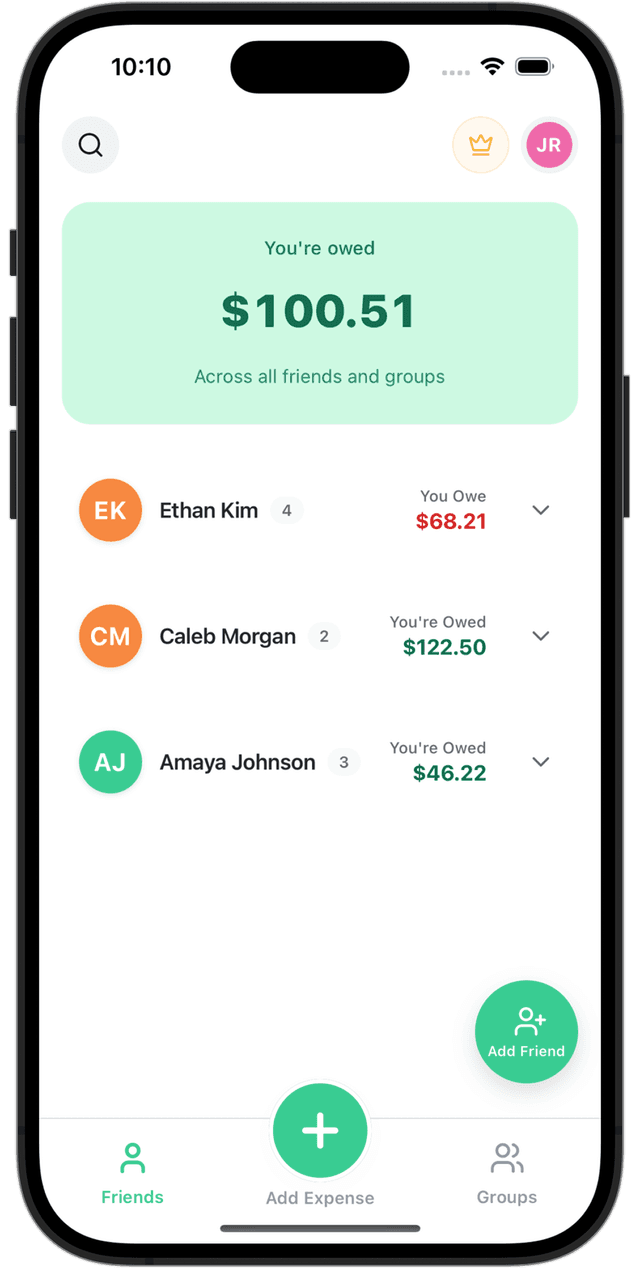
Step 2: Click Profile
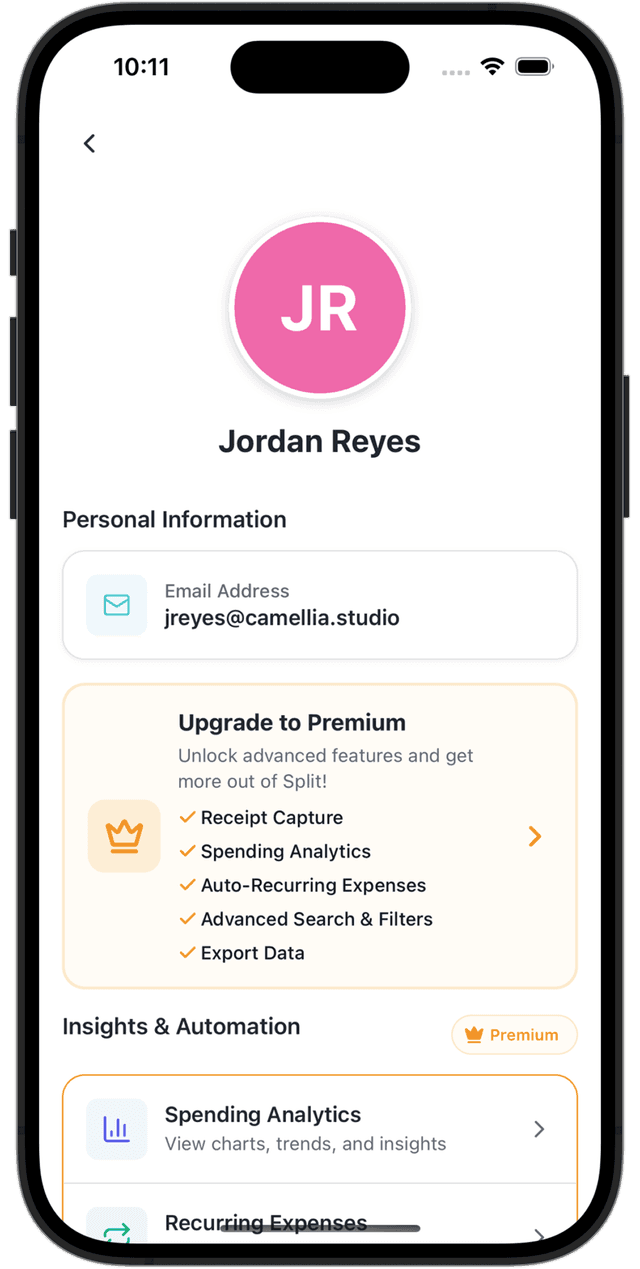
Step 3: Scroll Down
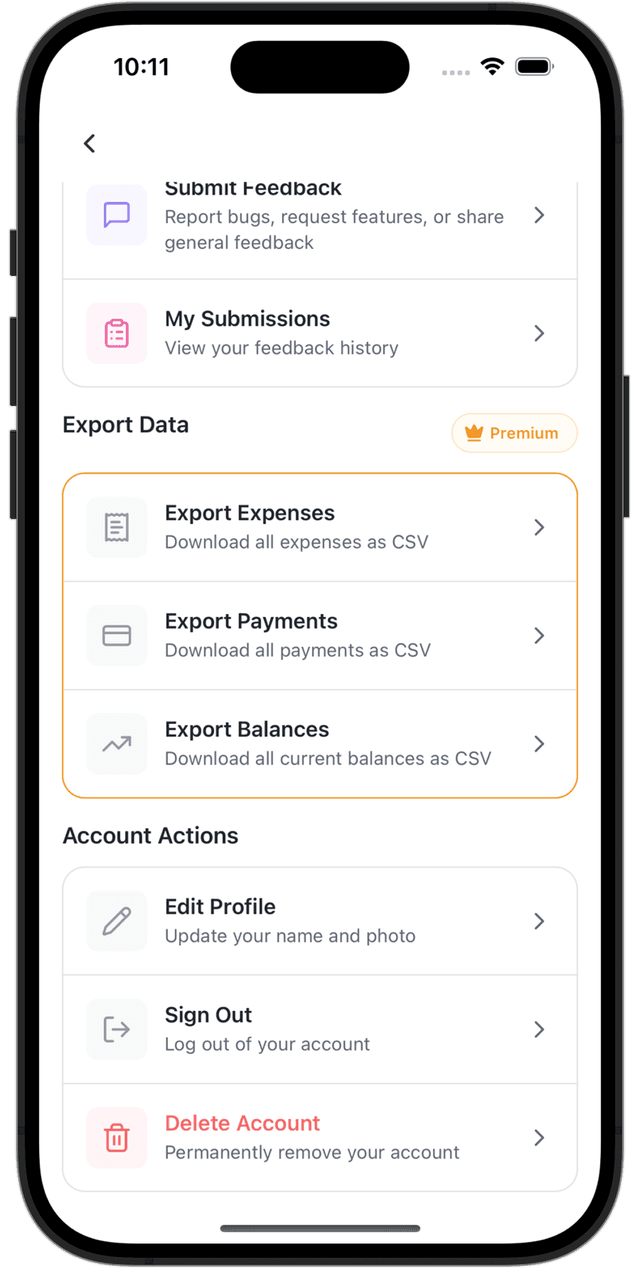
Step 4: Press Delete
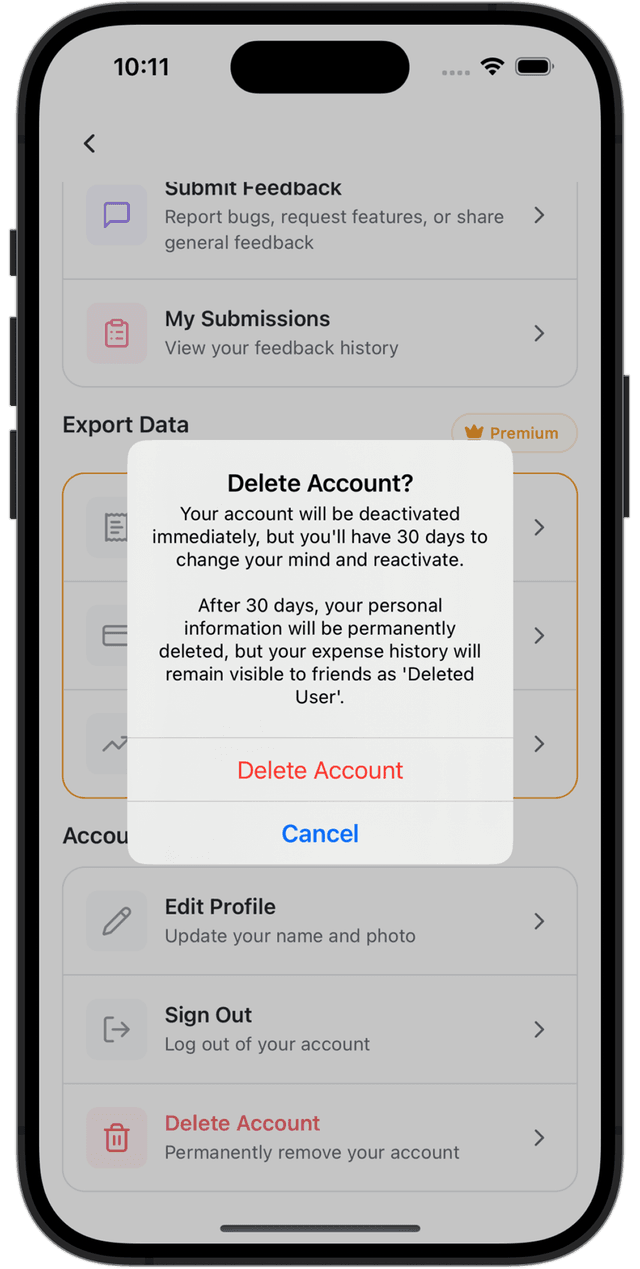
Step 5: Grace Period
Detailed Instructions
- Log In: Open the Split! app on your device and log in using your email address and password.
- Click Profile: Once logged in, click on the Profile section located in the top right corner of the app.
- Scroll to Bottom: Scroll down to the bottom of the Profile section to find the account deletion option.
- Press Delete: Tap the “Delete Account” button. You will be asked to confirm your decision before the account deletion is processed.
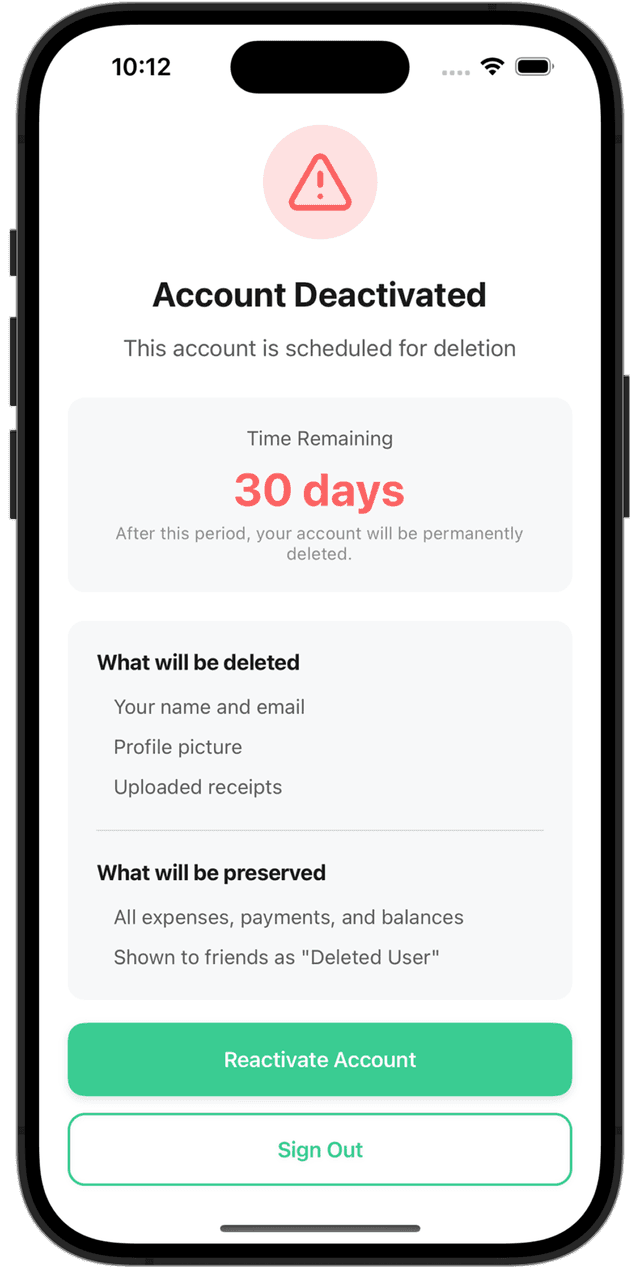
- Grace Period: After confirming deletion, if you try to log back in, you’ll see a countdown timer showing the 30-day grace period. During this time, you can reactivate your account. After 30 days, the account will be permanently deleted.
What Happens After Deletion
- Your account including name, email, profile picture, and any uploaded receipts will be deleted
- The email address belonging to the deleted account may now be used to create a new account
- Existing expenses, payments, and balances that will remain visible to other users, but they will appear under “Deleted User”
Need Help?
Contact us at support@camellia.studio